Select and keep objects in a photo
Pick subjects from the same photo and keep them together on a transparent background. Your original stays on-device.
Open the editor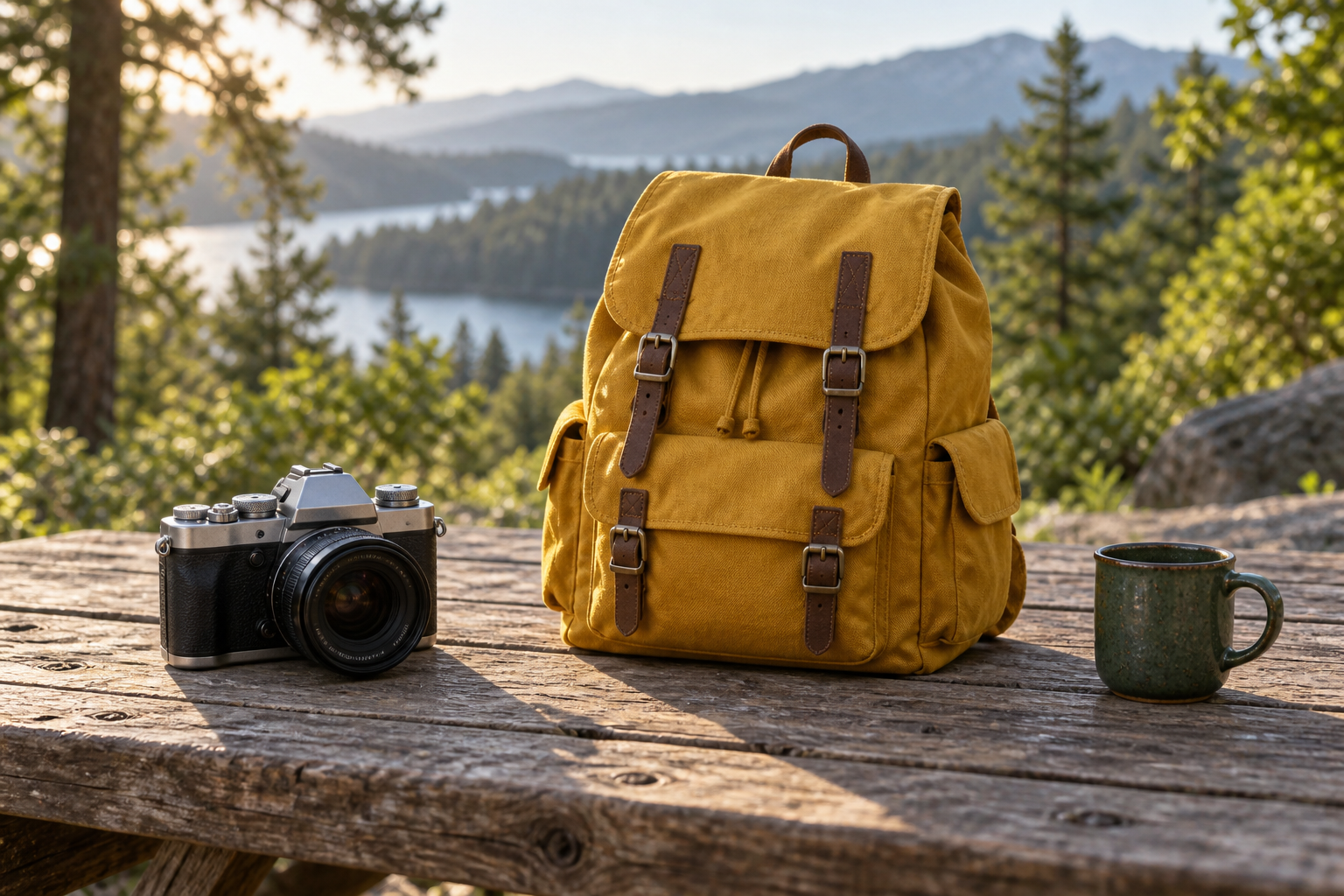
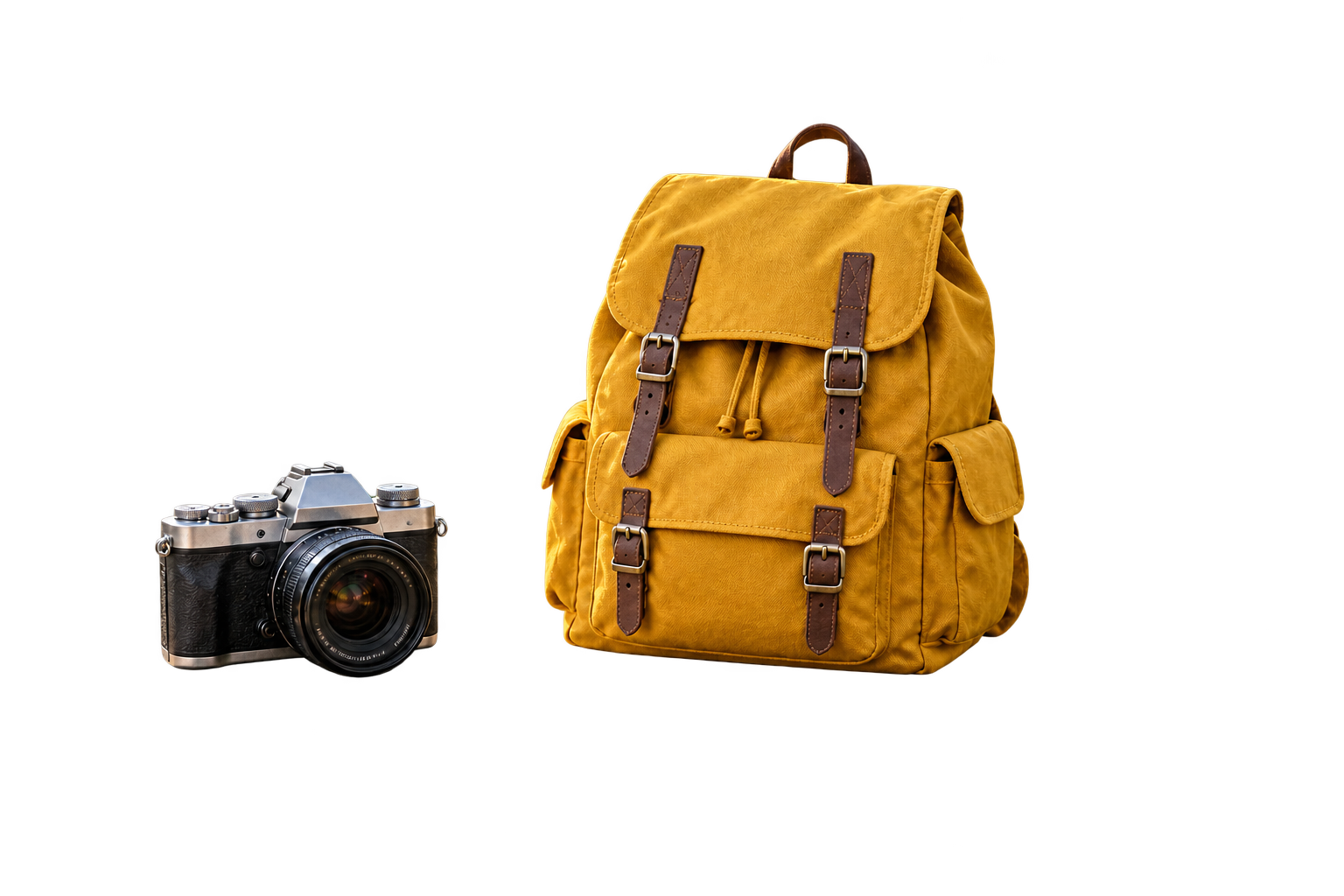
The scene is AI-generated and the result is prepared in advance to explain the steps. This is not a live processing or quality test.
Your photo. Your choice of subjects.
Choose what stays Use Keep for parts you want and Remove for unwanted parts.
Keep a combination Add subjects one by one and export them together as a transparent PNG.
Keep images on-device Selection and image processing run in your browser, without uploading your originals.
How to select and keep multiple objects
Use subject selection when automatic removal picks the wrong subject, or when you need particular objects from a group photo or product arrangement. You can start on the original without running automatic removal first.
Switch to subject selection
Open an image in the editor, switch to object selection and add Keep points inside the object you want.
Add keep and exclude points
Mark other objects to keep and add negative points on unwanted areas. Check the spaces between objects.
Repair edges and save
Restore or erase local edges, then export a transparent PNG or choose a solid color or local background image.