Free AI background remover
Remove backgrounds. Save transparent PNGs.
No sign-up or image uploads. Edit product photos, portraits and design assets in your browser, with edge repair and batch exports.
Free tools · No sign-in · Ad-supported
Start with the image you needBefore & after


One cutout, many uses
From product listings to portraits, place your subject on the background that fits.
Originals
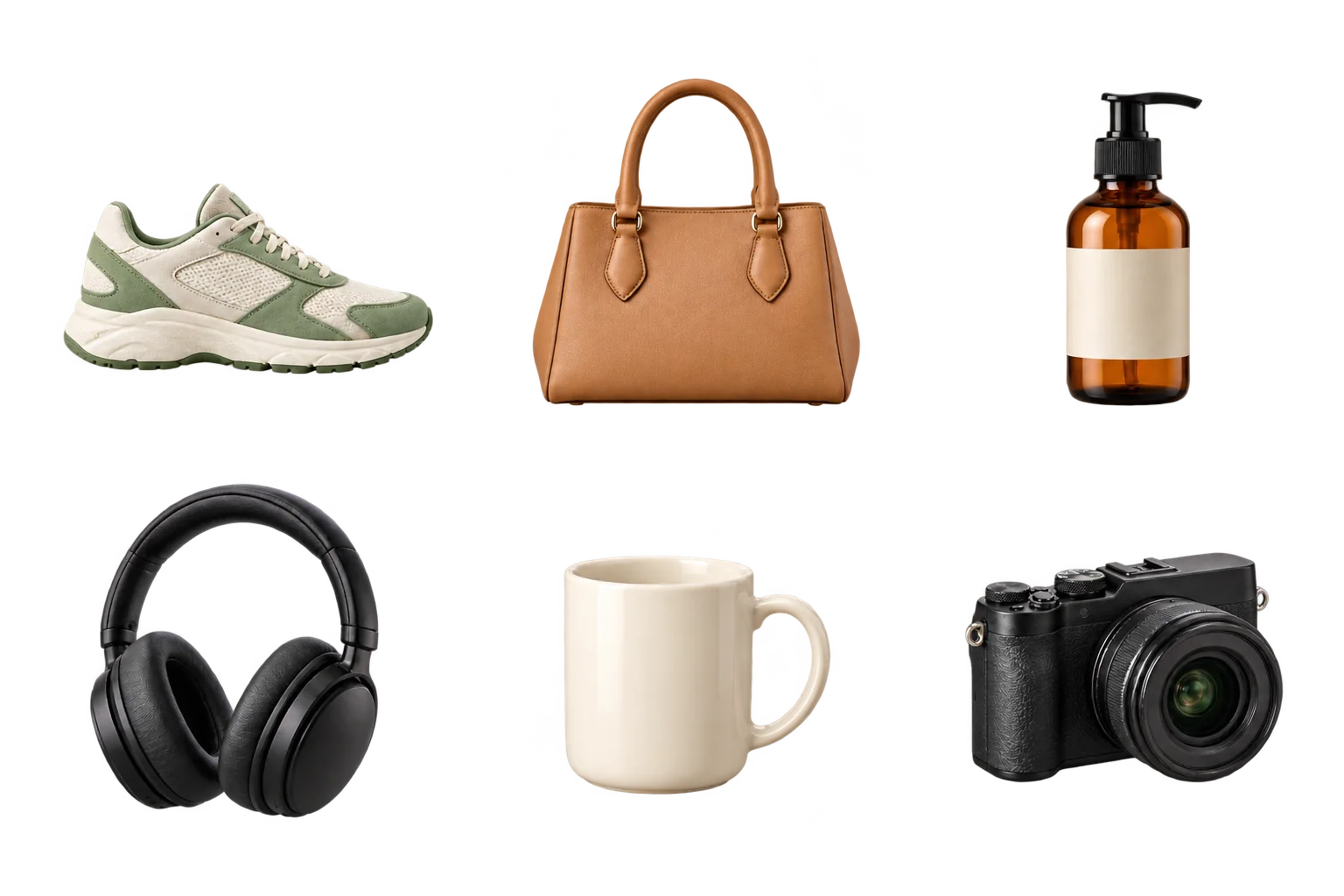


Matching backgrounds



Batch product photos
One portrait, three colors


ID photo backgrounds


Profile pictures


Posters & social posts
Synthetic illustration · Results depend on the source image
How to remove an image background
The first use downloads the files needed for background removal. Speed depends on your device and image size. Check and touch up the edges before saving.
About local processing- 01
Choose an image
Choose a JPEG, PNG or WebP from your device. Your original stays local.
- 02
Remove the background
Start removal in the workbench, or switch to subject selection to choose what to keep.
- 03
Refine if needed
Restore or erase edges, then choose transparency, a solid color or your own background image.
- 04
Download
Download a full-size PNG, or use the batch task center to process images and export a ZIP.
Core features
Automatic background removal
Choose an image, remove its background, repair edges and save a full-size PNG.
Object selection
Choose what to keep or remove
Batch processing
Up to 100 images, exported as ZIP
Backgrounds & practical guides
Transparent PNGs, white product photos, portrait colors and custom backgrounds.
Good to know
- Formats
- JPEG, PNG, or WebP in. Original-size PNG out.
- Size and detail
- As a guide, keep each image below 30 MB and 40 million pixels. What works depends on your device. Glass, smoke, fine hair and similar background colors may need touch-ups.
- Compatibility
- If processing cannot start, try the standard model or use a newer browser.
Start with the image you need
Follow a guide for your task, then open the workbench to edit your own photo.
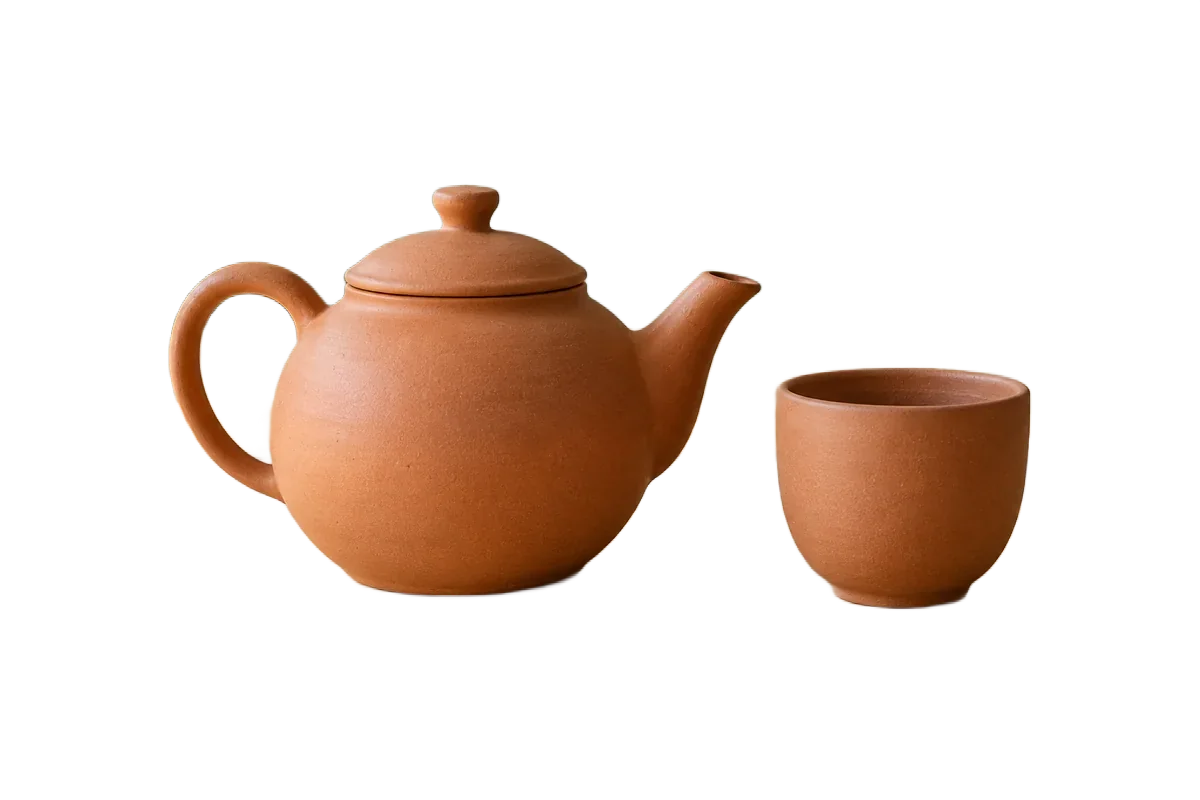
Make a transparent PNG
Remove a JPG, PNG or WebP background for presentations, posters and profile pictures.
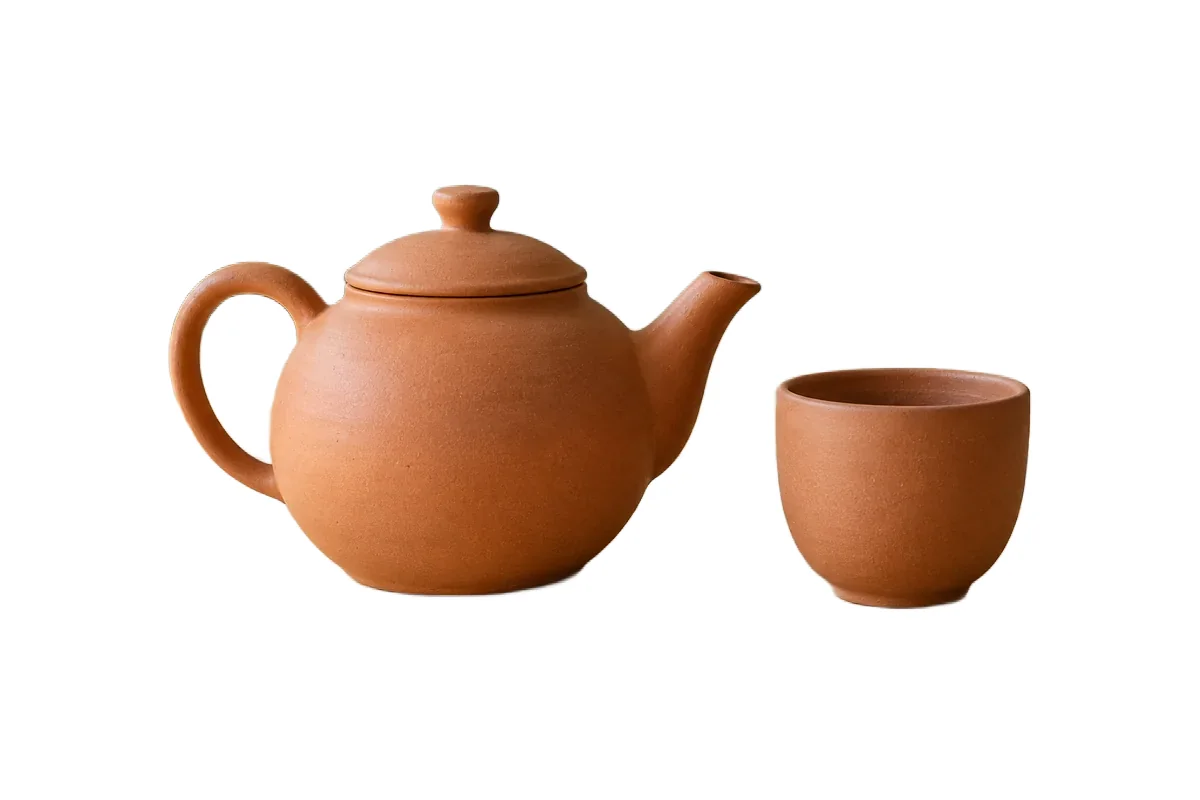
Give product photos a white background
Separate the product, check openings and pale edges, then apply white to one photo or a batch.

Change portrait and ID photo colors
Choose white, blue, red or a custom color, then inspect the hair and shoulder edges.

Replace a photo background
Keep your subject and add an image from your device. Learn how cover sizing, cropping and export work.
Solve a specific background-removal problem
- Why does a transparent PNG look black?
Tell viewer backgrounds apart from format changes and leftover pixels.
- How do I give product photos a shared white background?
Try a few images first, then apply a white background and save in smaller groups.
- Can local background removal continue offline?
See what needs an internet connection and what can happen after a refresh.
Background removal questions
What to know about cost, image privacy, transparent PNGs and batch processing.
Do I need to pay or sign up to download full-size images?
No account is required. Core removal tools and full-size PNG exports are free. Public pages may show ads; the editor loads no advertising scripts.
Explore the free toolsAre my photos uploaded to a server?
Original images, edits and results are processed on your device. The first use needs an internet connection to download the required files. Pages and ads may also connect, without uploading your image content.
Learn about image privacyHow do I save a transparent background instead of white?
After removing the background, choose Transparent and save as PNG. JPG cannot keep a transparent background. Some image viewers show transparent areas in white or black.
Follow the transparent PNG guideCan I process multiple product photos?
The batch task center queues up to 100 images. Apply a shared background, download individual PNGs or export a ZIP. Capacity depends on device resources, and failed items can be retried separately.
Open batch background removalWhat if hair, glass or a similar-colored background is not clean?
Use subject selection to clarify what to keep, then restore or erase local areas. Try AI refinement for complex edges. Glass, smoke and low-contrast areas may still need manual adjustments.
Learn about edge refinement