Add a white background to product photos
Prepare product photos for a catalog, shop or presentation. Remove the original background, repair the outline and apply a solid white background in your browser.
Make a white-background photoNo sign-in. Images are processed on your device.
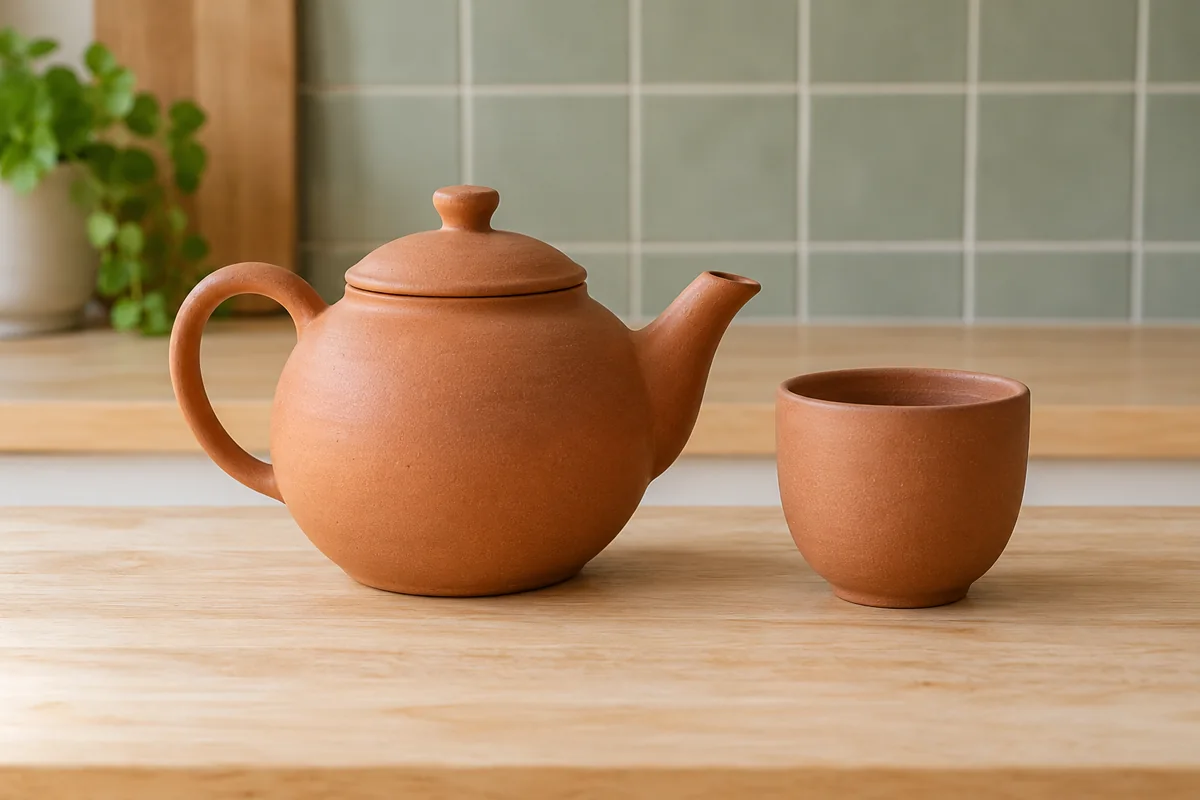
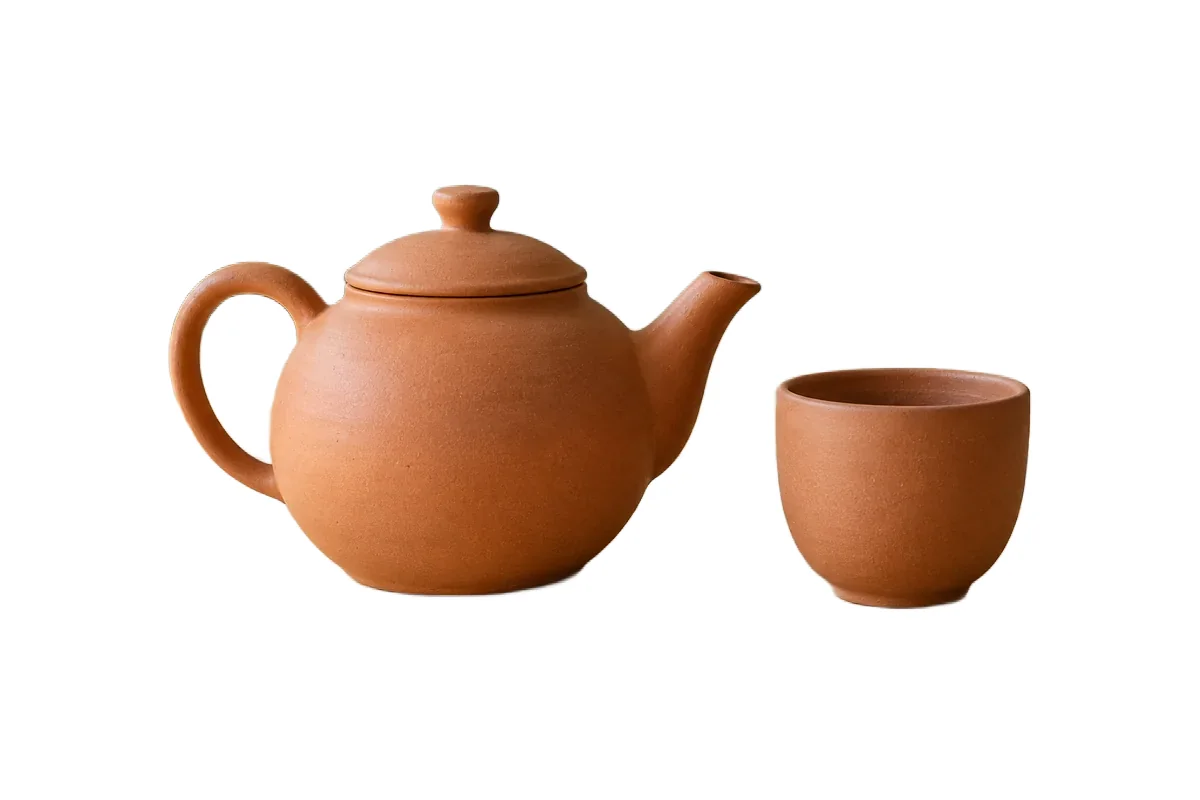
How to make a white-background product photo
Choose a product photo
Use a well-lit JPEG, PNG or WebP where the product is easy to distinguish from its surroundings. A plain source background can make difficult edges easier to inspect.
Separate the product
Run automatic removal, or use Object selection to keep only the intended product. Check handles, openings and transparent parts for unwanted background.
Set the background to white
Open Background and choose white, or enter #FFFFFF for pure white. Your cutout is kept when changing the background.
Check and export
Inspect light-colored edges against white, repair missing details and download a PNG. For several products, use the batch queue and a shared background.
Prepare consistent catalog images
A shared white background can help photos sit together in a catalog. ClearFrame changes the background; it does not automatically relight products, add studio shadows or align every product to the same size. Check each result before publishing.
Check the requirements of your shop
Marketplaces may specify dimensions, framing and accepted file formats. ClearFrame exports PNG at the processed image dimensions. Verify the destination requirements separately; a white background alone does not guarantee that a listing meets them.
How do I keep white product details?
Check the subject against a dark background and restore any missing white details before switching back to #FFFFFF. Inspect handles, openings and translucent parts at a larger zoom so you do not restore the old background as well.
Questions about this workflow
Can I use a different background color?
Yes. Choose a preset or enter a six-digit HEX color in Backgrounds. You can also choose an image from your device.
Can I make a whole batch white?
The batch workflow supports a shared background and PNG or ZIP export. Review individual cutouts because products with similar colors to the original background may need repair.
Will white details disappear?
They should remain part of the subject, but automatic separation can miss low-contrast details. Use Restore to recover them from the original before exporting.
Prepare your next product photo
Remove the background first, then choose white and review the product outline.
Make a white-background photo