Give a batch of product photos a white background
Start with a small sample, apply a shared white background, retry failed items and save manageable ZIP parts. Images are processed locally in your browser.
Open the batch task centerNo sign-in. Images are processed on your device.

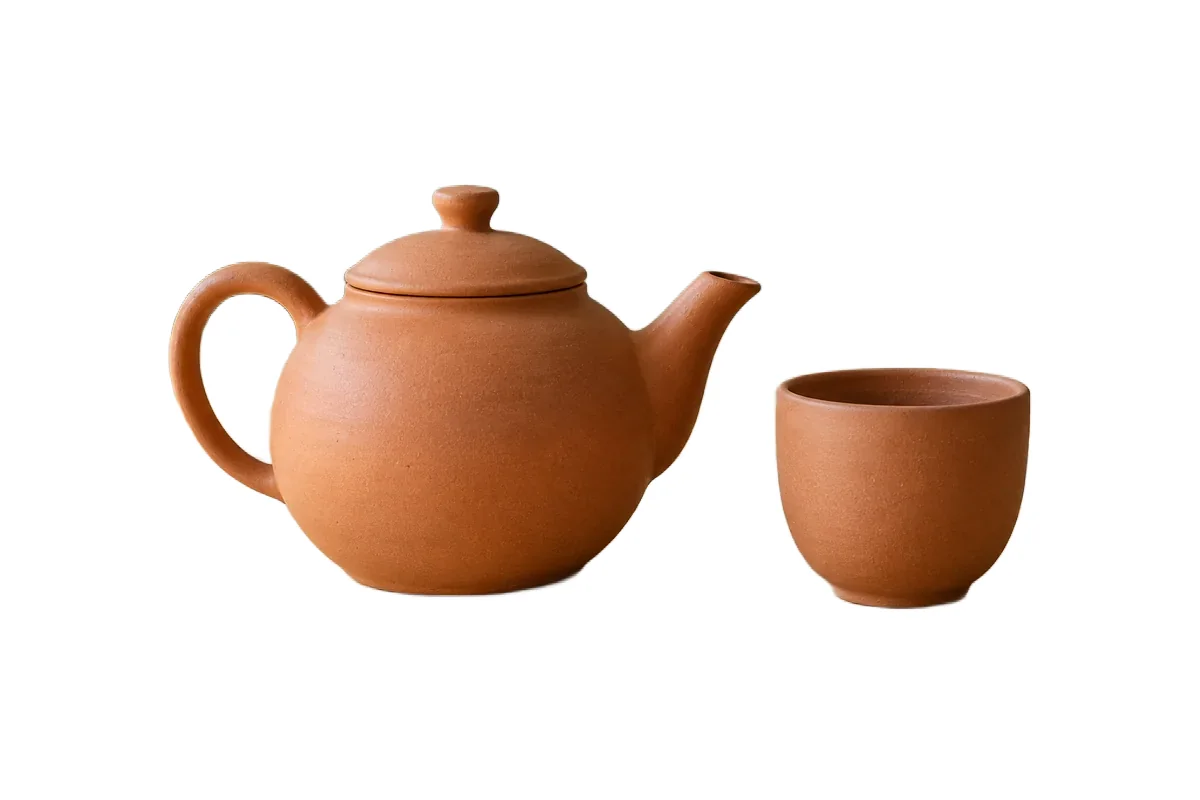
Make a consistent white-background product batch
Test a small representative sample
Choose two or three photos with typical edges, pale details or openings. Confirm that removal keeps the product intact before adding the rest of the batch.
Add images and start the batch queue
The batch task center accepts up to 100 images and processes them sequentially. This is an item limit, not a promise that every device can hold 100 large photos; split demanding images into smaller groups.
Apply a shared white background
Set the batch background to white and inspect pale products, handles and openings. A shared background does not normalize subject size, composition or lighting. Repair missing details in the workbench.
Retry failures and save manageable parts
Save finished images first and retry failed ones individually or together. Split large ZIP downloads into smaller groups. Cancelling packing does not delete finished images.
Why smaller batches are easier to inspect
Image dimensions, source files and results all use memory. Finish and save a small group, then remove tasks you no longer need. A successful single image does not prove that the device can process a full 100-image queue.
Treat failures and pauses separately
If an image will not open, check its format and try saving it again in an image viewer. If your device slows or pauses, save and remove finished images. For failed file downloads, check your connection and retry. One failed image does not require redoing all the others.
Check marketplace requirements after changing the background
A marketplace may specify dimensions, framing, format or shadows. ClearFrame replaces the background and exports the current image dimensions as PNG; it does not guarantee acceptance by every marketplace.
Questions about this workflow
Does batch removal upload my photos?
No. Images are processed on your device. Servers provide pages and required files, so the first use still needs an internet connection.
Can I save only the successful results?
Yes. Download completed PNGs individually or include them in a ZIP. Failed queue items do not require you to process all files again.
Will all products automatically become the same size?
No. A shared background changes the backdrop. It does not automatically crop the canvas, align subject sizes or adjust lighting.
Start with a small product-photo batch
Confirm the workflow with a few samples, then process, inspect and save the remaining photos in groups.
Open the batch task center